
Tips for your first game
Read this once before you score a live game. It covers the handful of things that trip up a new scorer — not everything the app does, which is in the full guide.
1. Practice first, on a game that does not count
Do this before anything else. Twenty minutes here is worth more than any amount of reading, including this page.
You already have a game for it. Every new school starts with one on its dashboard called SAMPLE — both teams invented, a real half of football already in it, sitting at halftime. It is marked PRESEASON, so nothing you do in it touches your season totals.
- Open the SAMPLE row on your dashboard
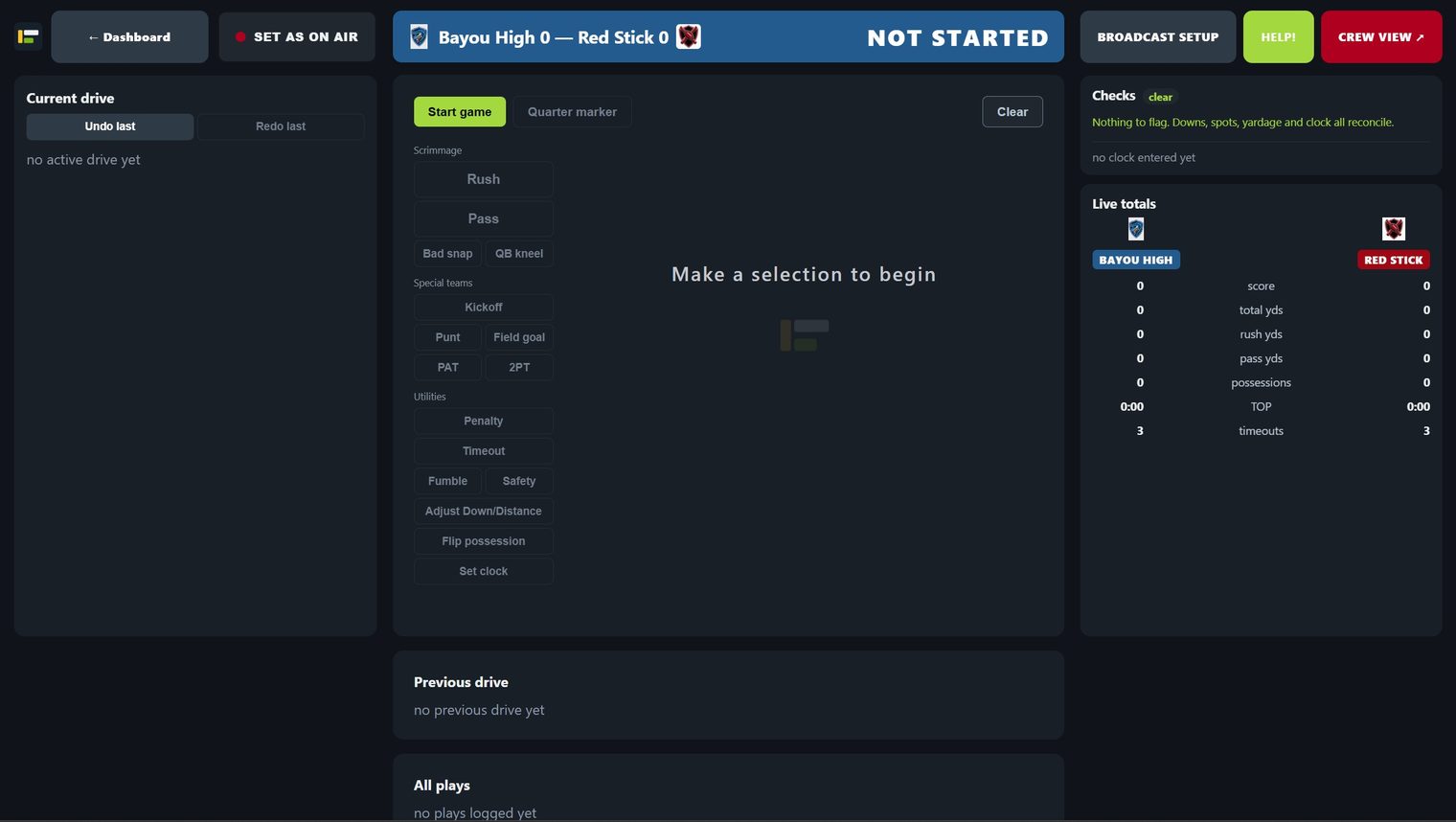
- Click CREW VIEW (red, top right) to see the halftime screen your broadcast crew sees — it opens in its own tab
- Back on the game page, click Start 2nd half and work through the guided kickoff
- Log plays, deliberately varied — rushes, a sack, a punt, a fumble, an interception, a field goal. Enter realistic situations rather than random ones; the rhythm only makes sense that way
- Press Quarter marker to move to the 4th, then End game to finish it
- Back on the dashboard, read the Game recap, Score summary and Stat package. Recap and stat package only appear once a game is final, which is why finishing it matters
- When you are done, delete it: the ⋮ menu at the end of its row, then Delete game
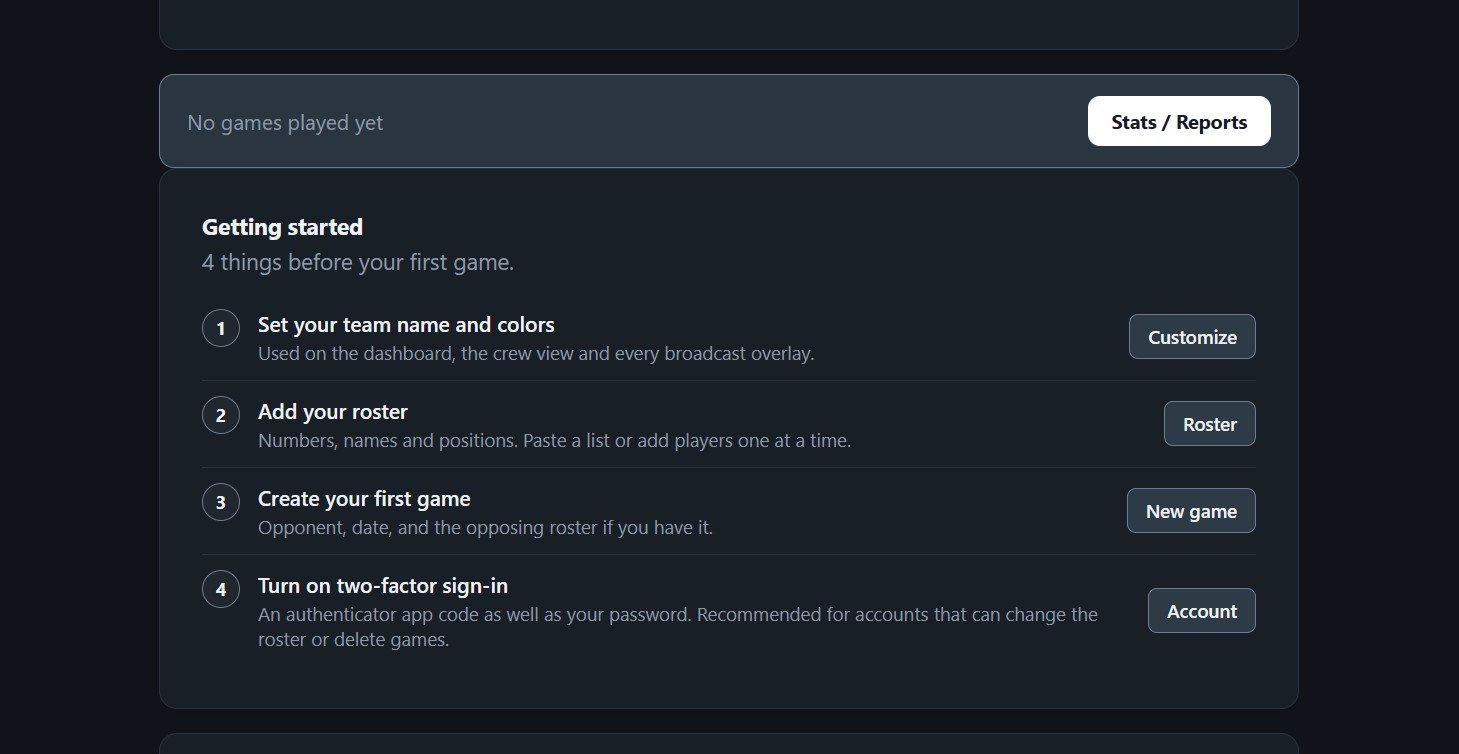
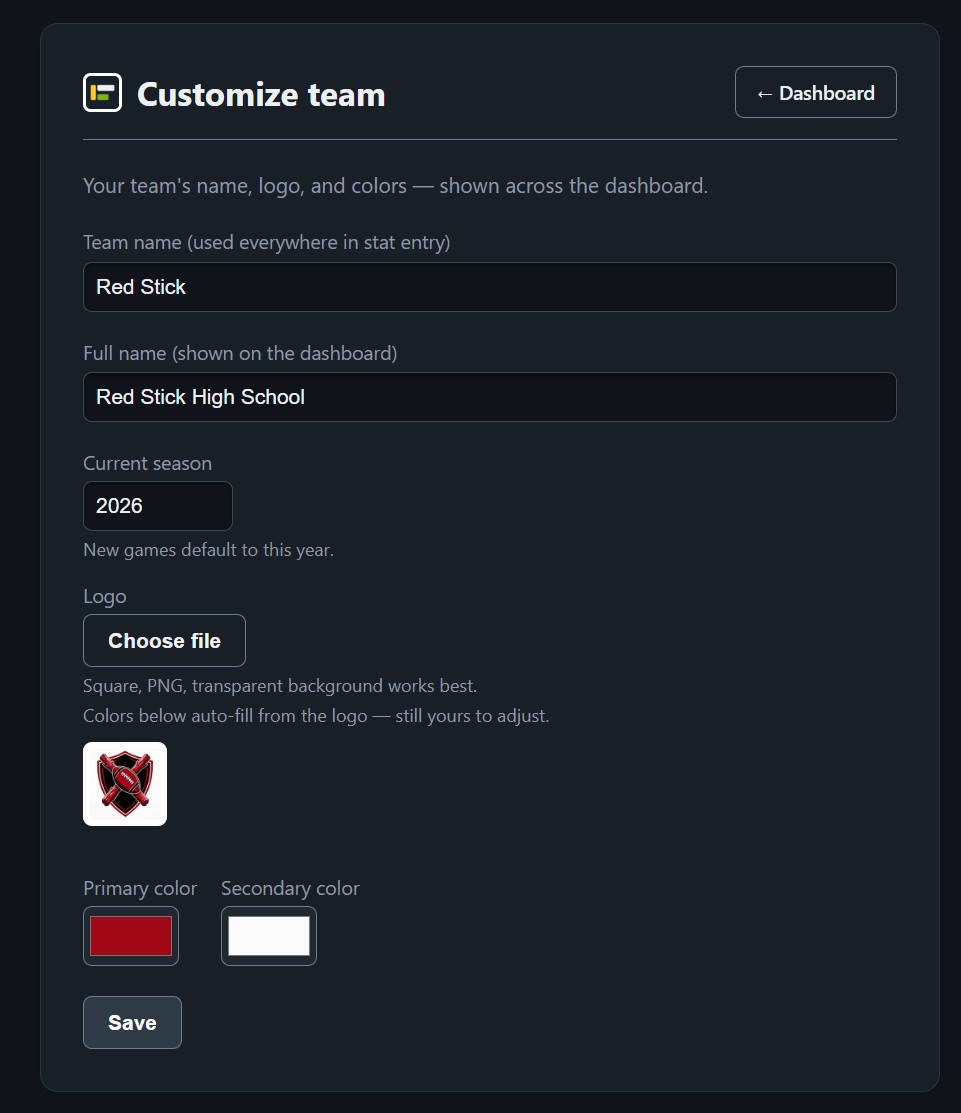
2. Before kickoff
Three things, in this order. The Getting started card on your dashboard follows the same order.
| Step | What matters |
|---|---|
| Customize | Logo and colors. Square, PNG, transparent background — the same logo is drawn in a square slot on the dashboard, the crew view, the broadcast overlays and the printed recap, and a white box behind a crest shows up in all four. Your primary color is picked up from the logo automatically; white is almost always the right secondary, because it is the one that stays readable on every background an overlay lands on. |
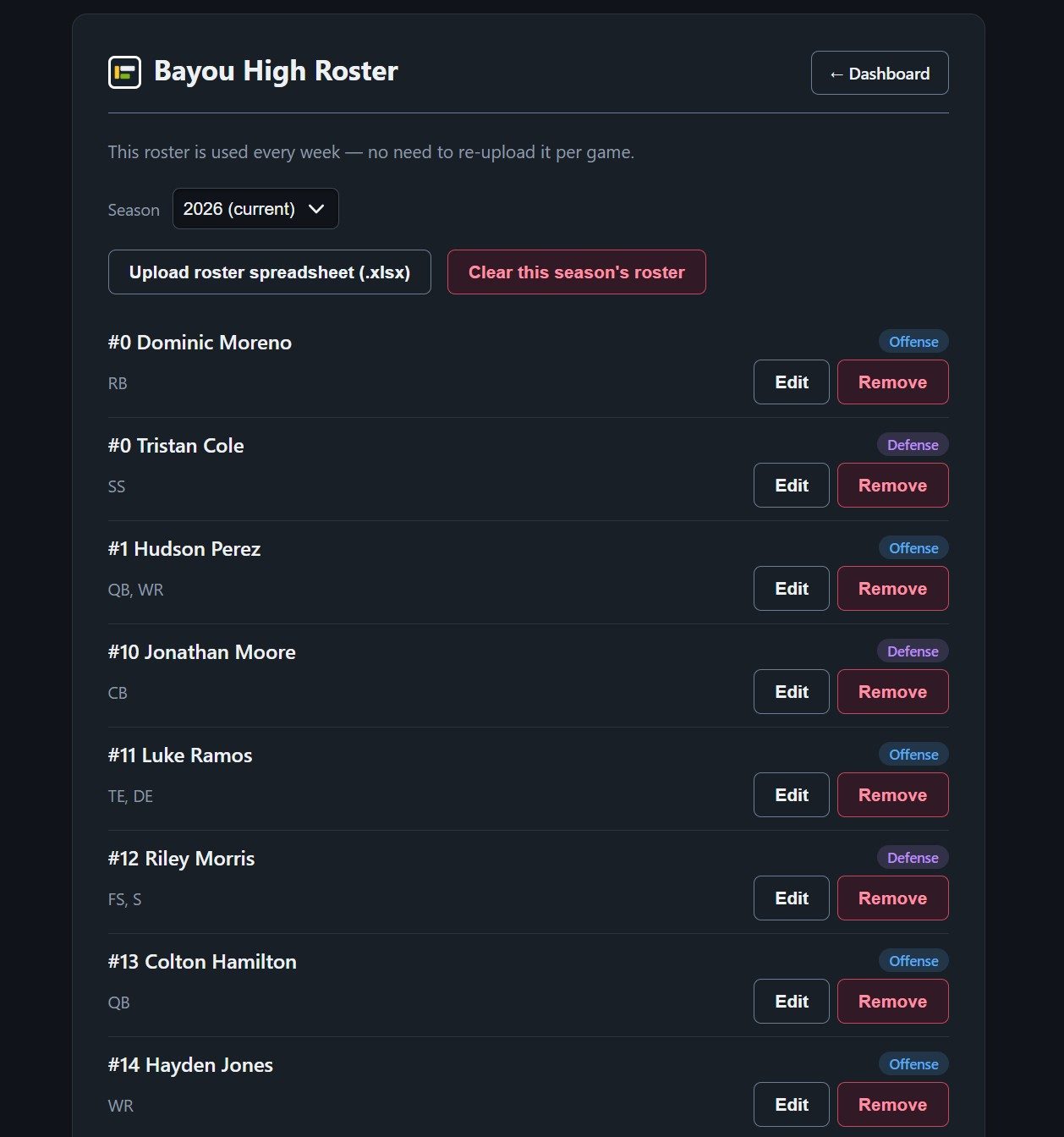
| Roster | Three columns: number, name, position. A header row is fine. Nothing else in the sheet — no blank rows, no totals. |
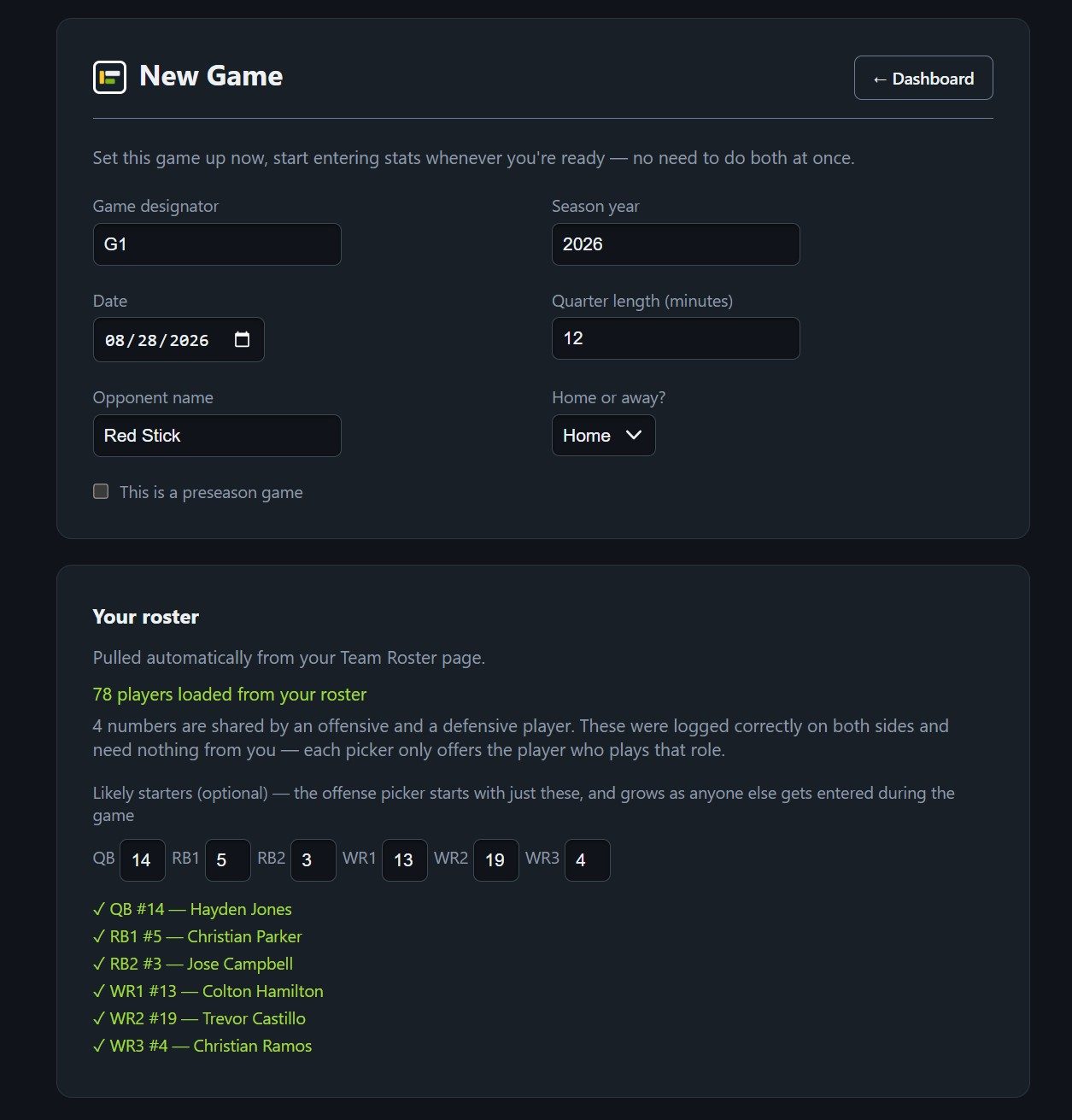
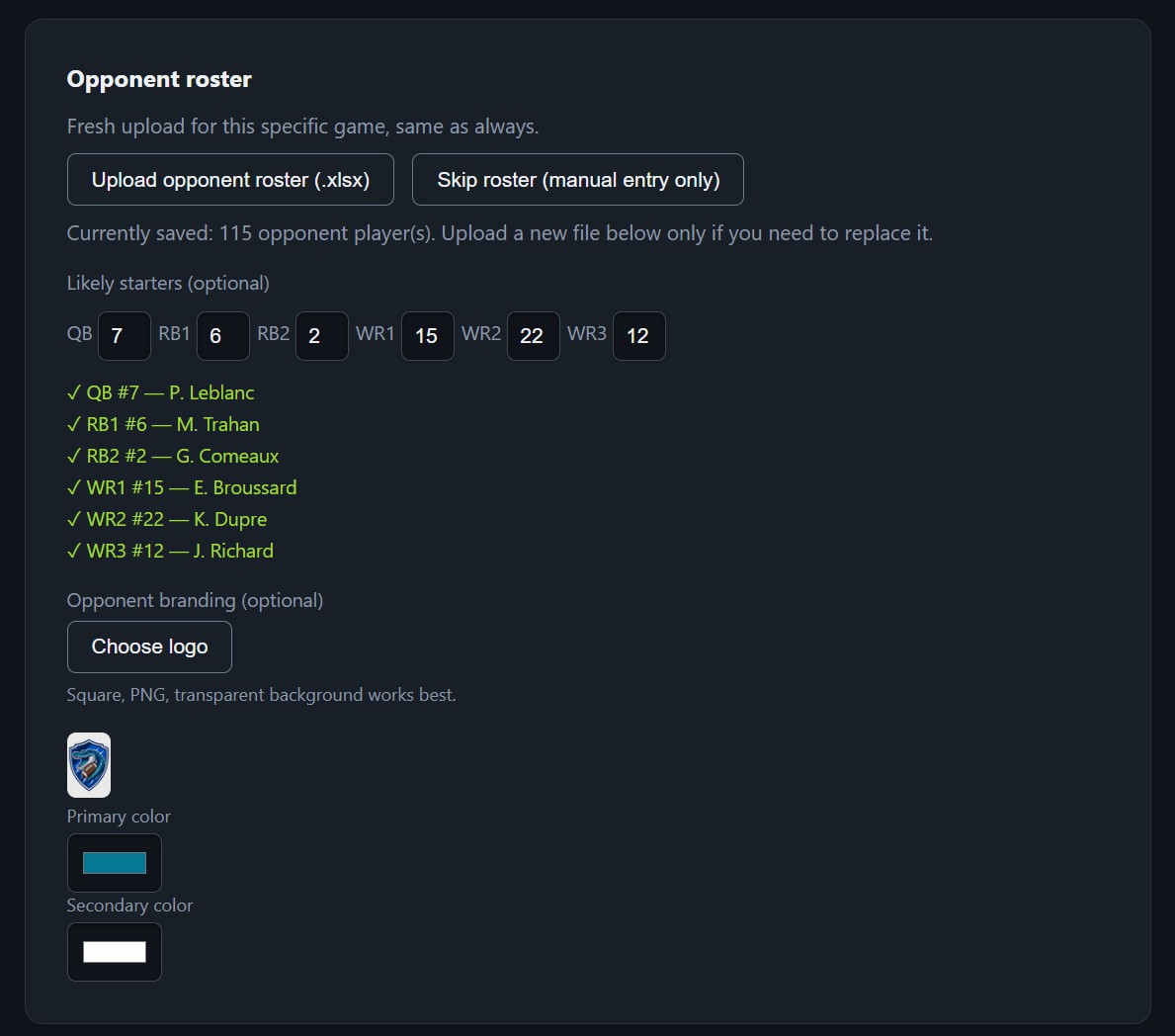
| New game | Have the opponent's roster to hand before you start. You will be asked for it partway through. |
3. The rhythm of a play
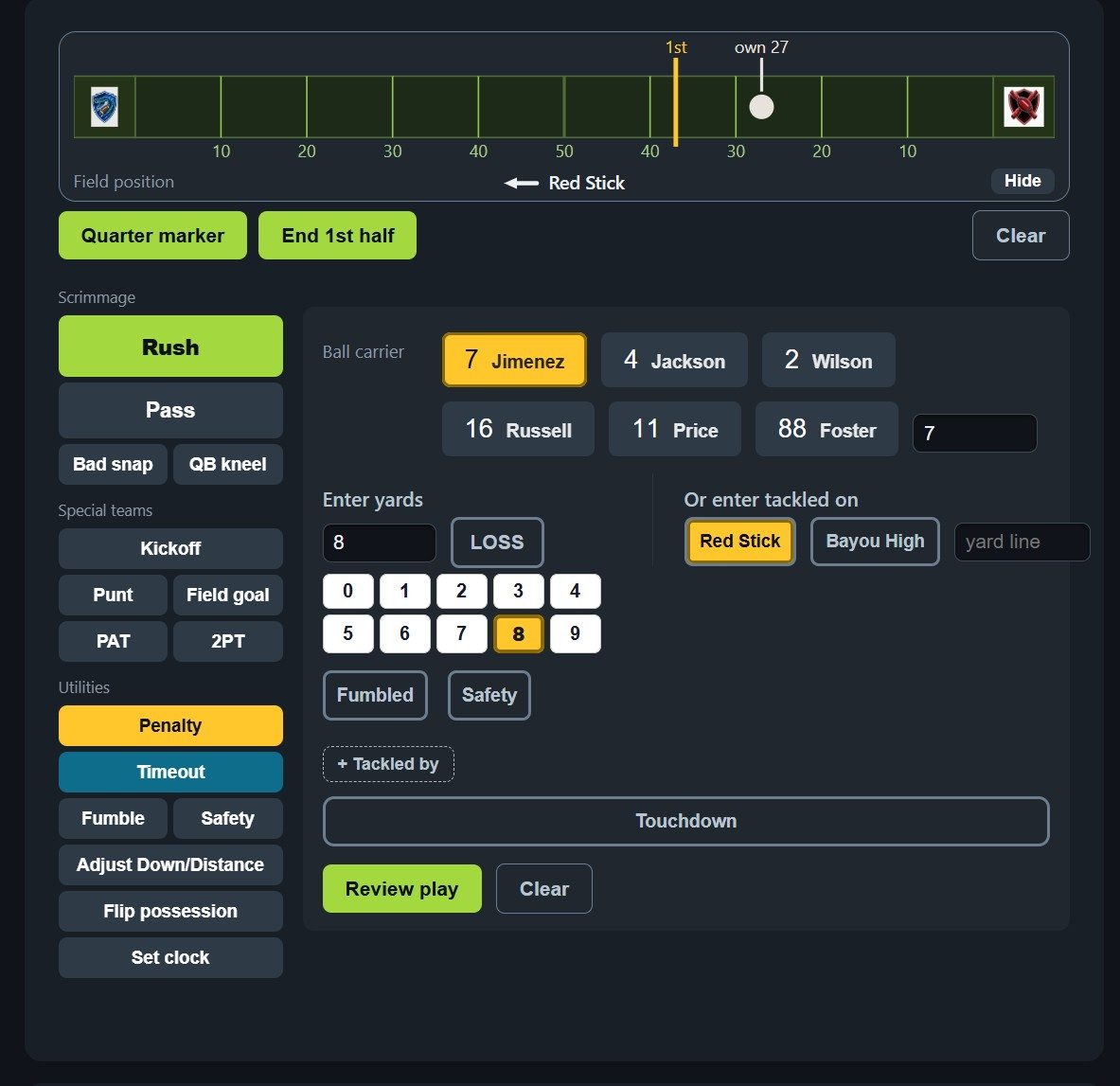
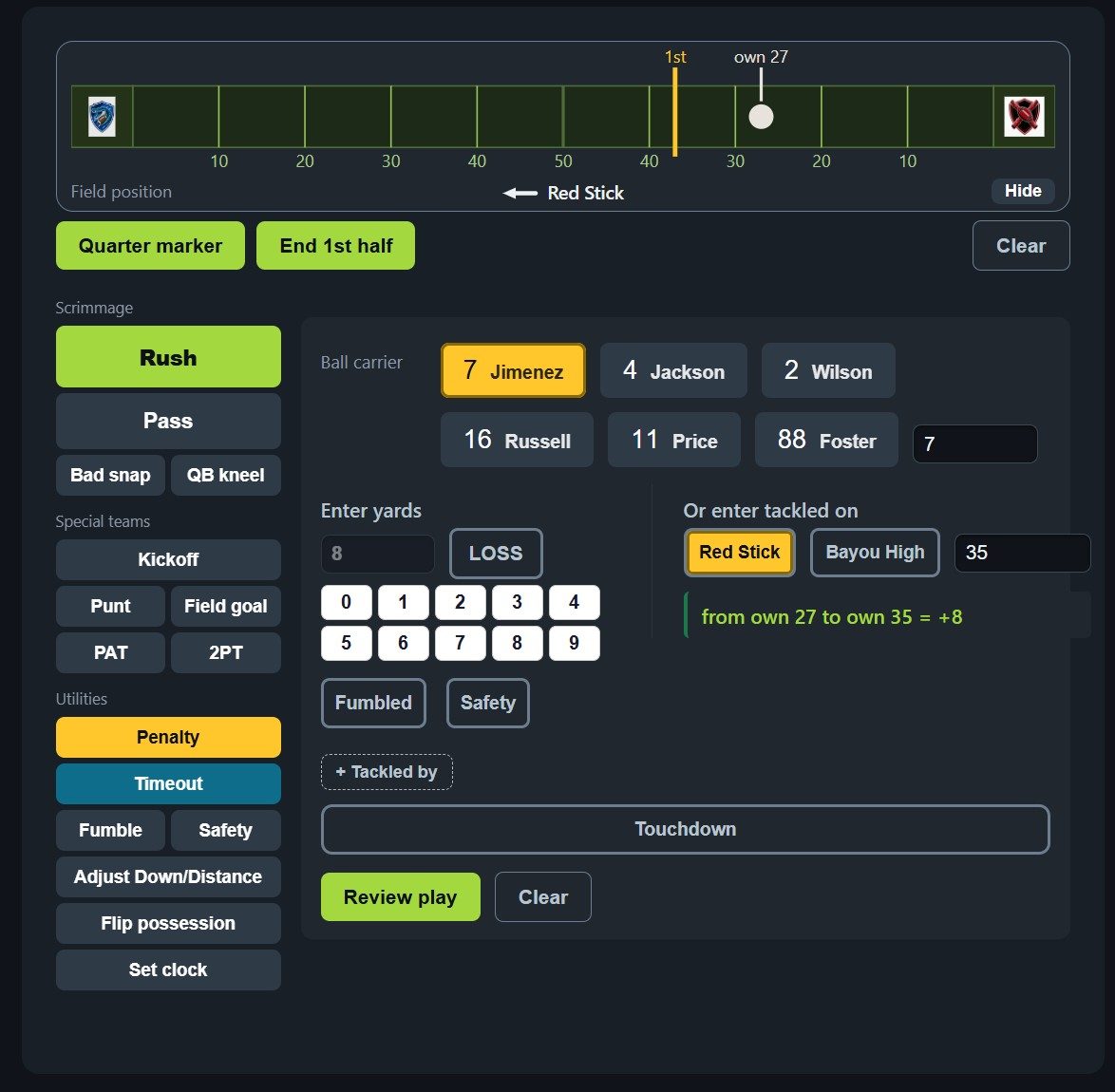
Every play is the same four questions, and after a quarter or so your hands stop needing to think about them.
| Question | Where | |
|---|---|---|
| 1 | What kind of play? | The ladder down the left |
| 2 | Who? | The picker at the top of the panel |
| 3 | How far? | The yards box, or the calculator |
| 4 | What happened after? | Touchdown, fumble, spot |
Then Review play, read the sentence it produces, and Save. Reading the sentence is the habit worth building: it is written in plain English precisely so that a wrong entry looks wrong.
The review card also raises anything it can see is missing. A completed pass with no receiver gets NO RECEIVER SELECTED in amber above the sentence: the yards will still count for the team and for the passer, but nobody is credited with the catch. It is a warning, not a refusal — you can go back and pick the receiver, or save it as it stands and move on. An incompletion is never flagged, because there is nothing to credit.
After you save: the spot nudge
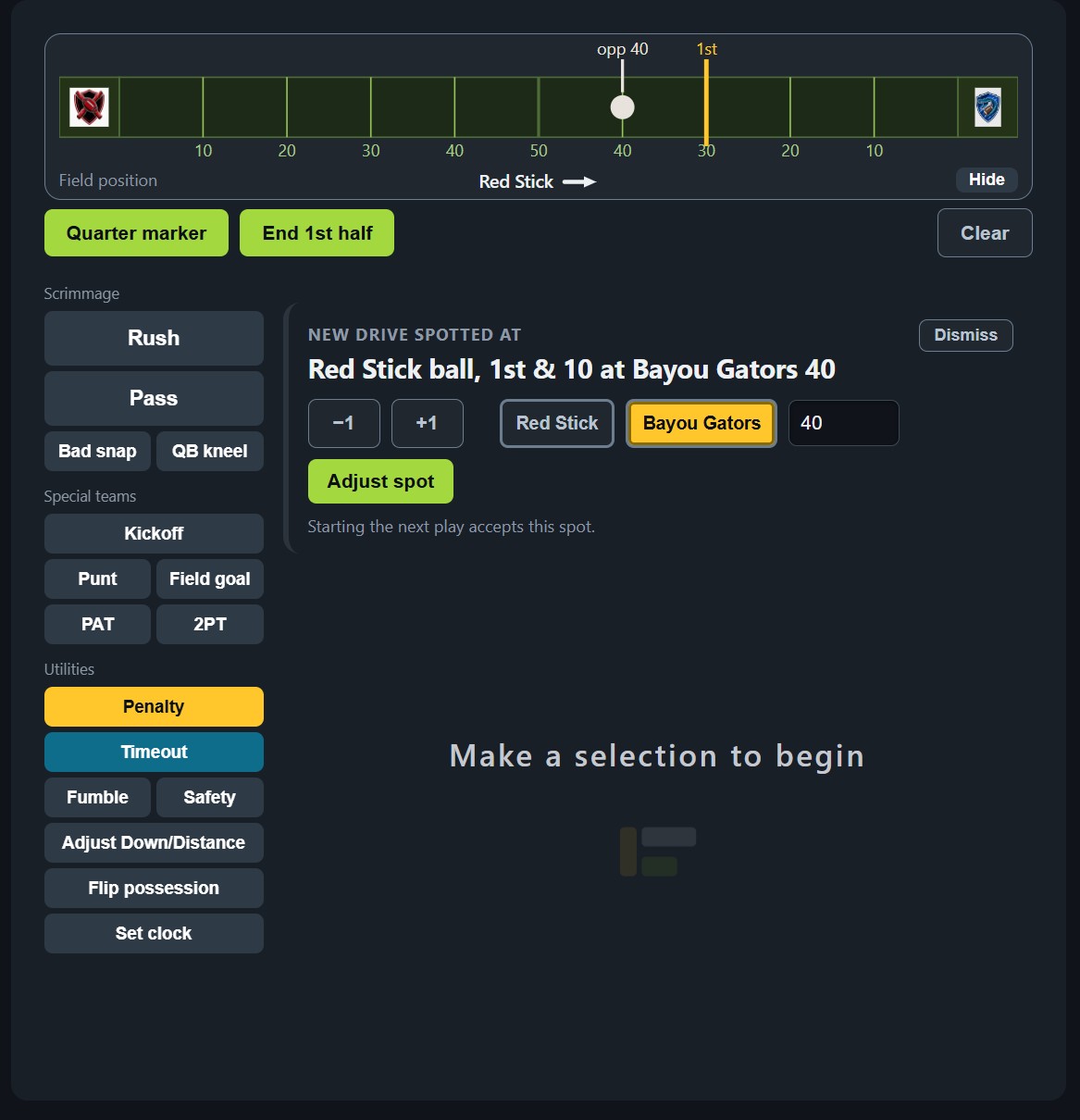
When a play hands the ball to the other team, the app puts a short amber card where the confirm box just was, headed NEW DRIVE SPOTTED AT, and states in plain football what it now believes: Red Stick ball, 1st & 10 at Bayou Gators 40.
It is not a question and it blocks nothing. If that sentence is right — and it usually is — ignore it and start the next play. It costs you no tap at all. The line under it says as much: starting the next play accepts this spot.
If it is wrong, fix it there and then, in whichever way is quickest: −1 and +1 for a yard or two either way, the two team buttons to move it to the other side of the field, or type the yard line straight into the box. Then Adjust spot.
Two things worth knowing about it. It appears on a new drive — possession actually changing hands — and not on a new series for the same team, such as a muffed kick they recover themselves. And adjusting the spot does not create a drive of its own, so you can nudge it, look again, and nudge it a second time without leaving anything behind in the reports.
This is the cheapest moment in the whole game to catch a wrong spot. Everything downstream — the field graphic, the yardage checks, the drive summary, whether the app can tell you a gain is impossible — is measured from it, and once the next play is in, the wrong spot has been baked into that play too.
4. When the app says no
Two moments make a new scorer think something is broken. Neither is.
The spot, at a change of possession
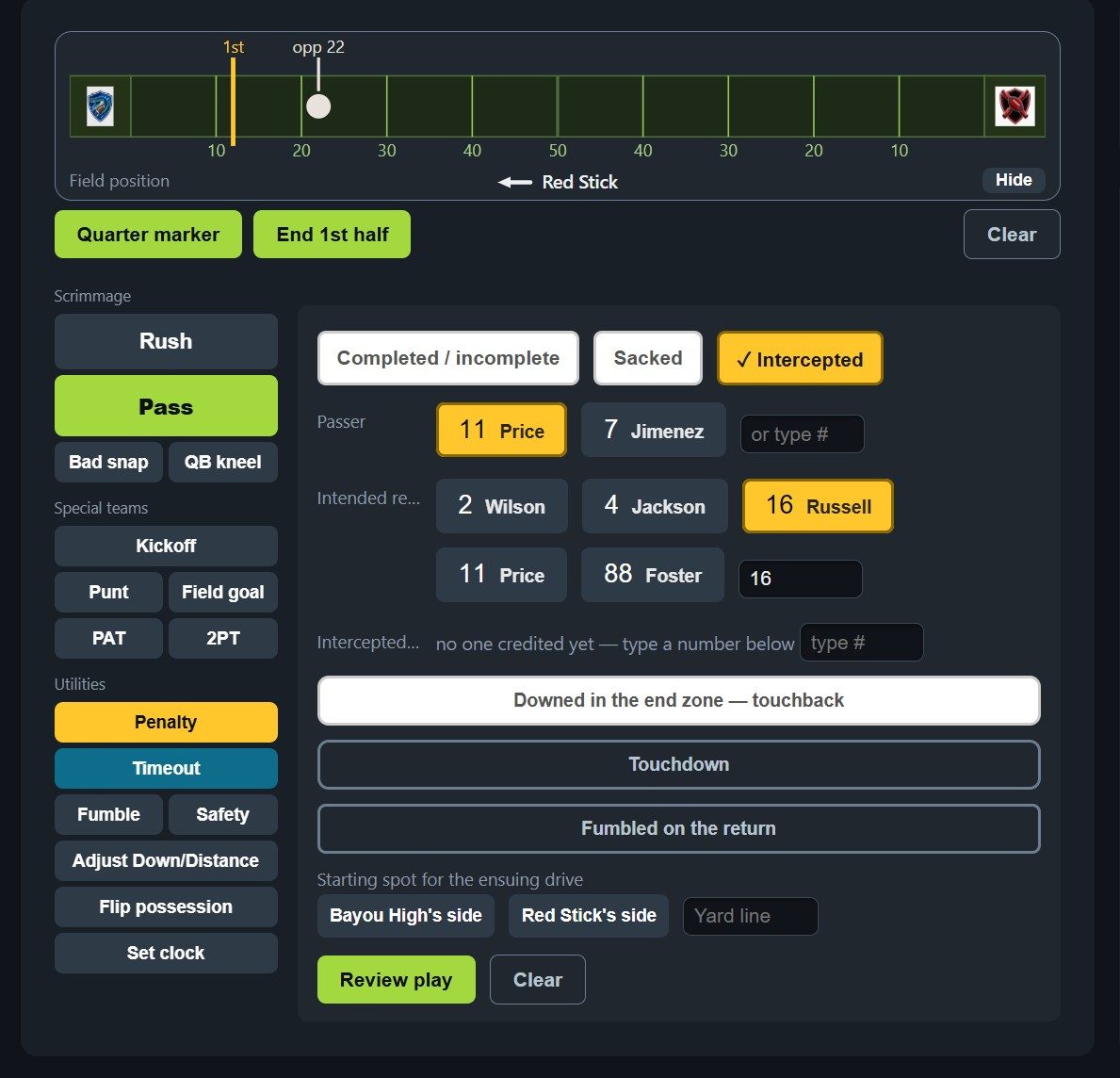
Whenever the ball changes hands you must give a side of the field and a yard line. Review play refuses without both and says which is missing.
This one is worth understanding rather than just obeying. The spot is not really a statistic — it is what every later yardage check depends on. Without it the app has no idea where the ball is, so it stops being able to tell you that a 40-yard gain from the opponent's 12 is impossible. A missing spot does not lose a number; it stops wrong numbers being caught.
Which is also why the app shows you the spot back, in words, the moment the play is saved — see the spot nudge in section 3. The refusal here and the nudge there are the same concern from both ends: one makes sure a spot exists, the other makes sure it is the right one.
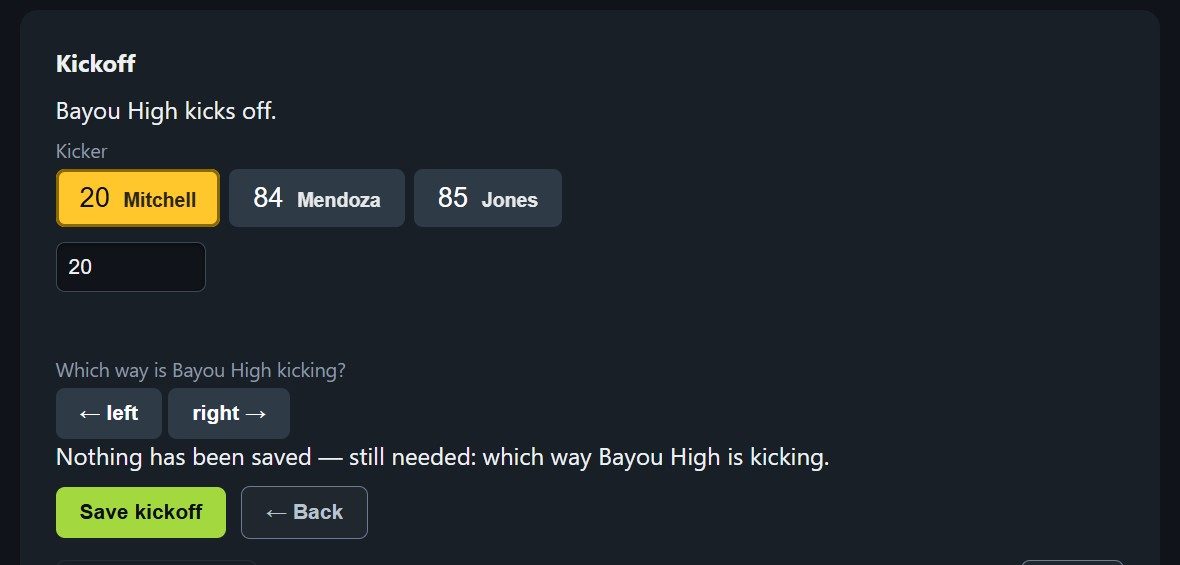
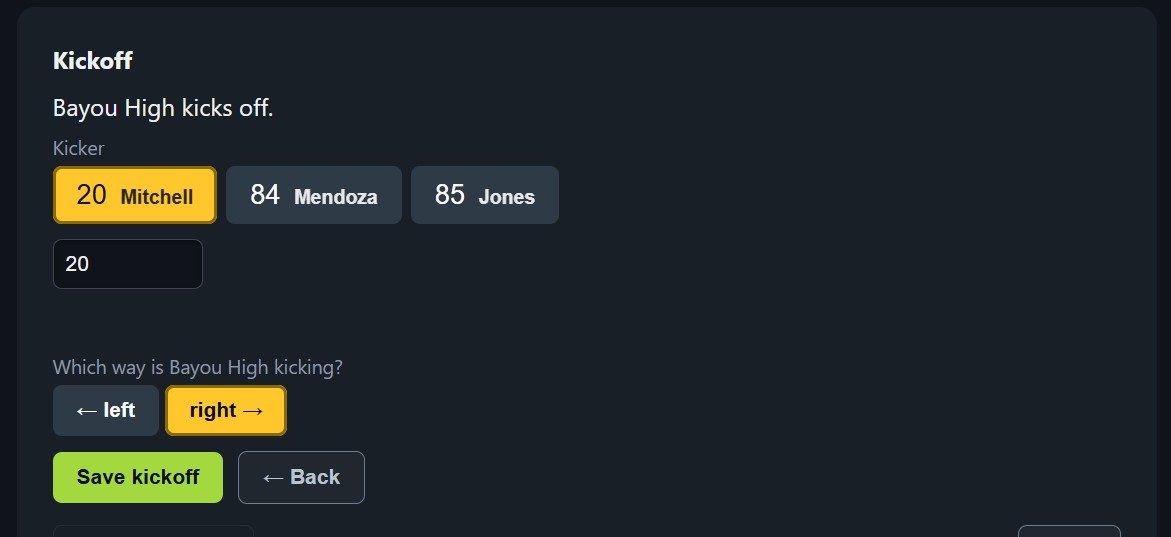
The kickoff, at the start of a half
The guided kickoff needs a kicker and a direction. The direction is the only thing that tells the app which way each team is going, and it alternates by quarter from that one answer.
5. Flags
Three things about penalties catch people out, and none of them is obvious from the panel.
Enter it in the tree, not the utility
Every play panel has a collapsed + Penalty on this play button under the other fields. That is where a flag during a play goes. Pick the foul, give the spot — a side of the field and a yard line — and save the play once. The app writes both rows, the snap and the penalty.
The play still counts
This page said the opposite until 6 October 2026, so it is worth being blunt about: a foul during the play does not wipe it out. A back who runs eight before holding is called keeps an attempt and keeps the yards he had made when the flag fell — NFHS calls that the point of legal advance. The panel works it out and shows you the number while you type.
Where the yards come off
Most fouls are marked off from where the ball started. A foul during a play often is not — it comes off the spot where the foul happened.
A back runs 8 from your 30, holding at the 34: the ten yards come off the 34, so the ball ends on the 24. A net six, not ten. The tree does this for you. In the utility you tick Enforce from spot of foul and give the side and the yard line yourself.
A flag during a return
A punt, a kickoff, an interception or a fumble recovery — the return is the part of the play the flag is marked off against, and the block on those panels says + Penalty on the return. Fill in where the ball was fielded or picked off and where the drive starts, and it does the rest.
A foul by the team that just lost the ball is the one the tree cannot take — a personal foul on the tackle of a returner, most often. That goes in the utility: pick the team, the yards, and During a return. No spot: it is marked off from where the drive starts, which is already where the ball is.
6. What is optional, and what it costs
Some fields say optional and mean it. Knowing which is which is what lets you keep up during a fast drive.
| Field | Skip it and… |
|---|---|
| The clock | Nothing is blocked. That possession is simply not counted toward
time of possession. Enter it at each change and TOP works;
skip it and TOP is incomplete rather than wrong.
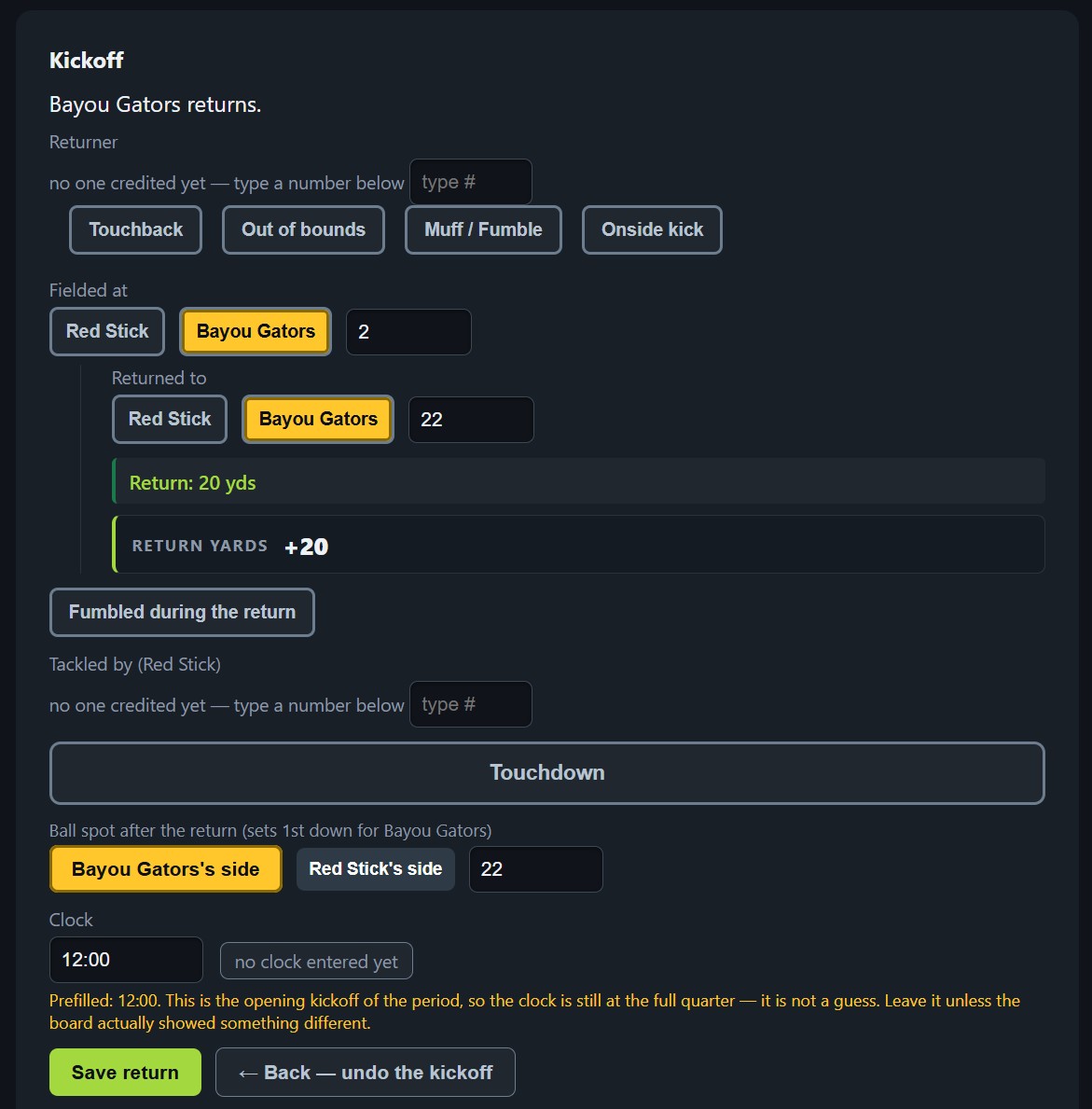
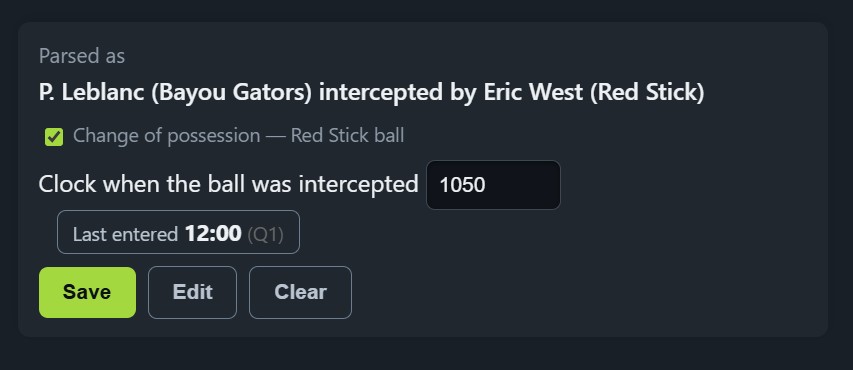
The label tells you which moment it wants. Possession does not change at the whistle on most turnovers, so the box names the moment instead of just saying “Clock”: when the punt was fielded, when the ball was intercepted, when it was recovered. A turnover on downs says plain “Clock”, because there the whistle is the moment. Read the board at the moment it names and the return's seconds land with the team that made the return; read it after the runner is down and they go to the team that just lost the ball. Kickoffs fill themselves in. The clock is stopped before every kickoff, so the app knows the value and puts it in the box with a note saying where it came from — a full quarter at the open of a half, the clock at the score during the game. Leave it alone unless the board actually showed something different. |
| The returner | The return still counts for the team. Only the individual credit is lost. |
| Tackled by | The play is unaffected. Only that tackler's count is missed. This includes coverage tackles on kickoffs and punts — those now credit the tackler and name him in the log line, the same as a tackle from scrimmage. |
| The spot | Not optional. See above. |
Time of possession is only as good as your clock entries
Each possession's time is the difference between the clock you entered when that team got the ball and the clock you entered when they lost it. Those readings chain: the end of one possession is the start of the next. So a single wrong entry — a transposed digit, a clock read a beat late, the wrong quarter — does not just spoil one drive. It makes one team's total too high and the other's too low by the same amount, and every possession after it inherits the error. One bad entry anywhere in the game invalidates the whole time of possession calculation.
Nothing else in the app works this way. A missed tackler costs you that tackler. A wrong clock costs you the entire TOP number for both teams, and it will still look perfectly reasonable on the report.
Two habits make it survivable. Read the board, do not remember it — if you did not actually see the clock, leave the box empty rather than putting in a number that feels about right. An empty box makes TOP incomplete, which is honest; a guess makes it wrong, which is not. And take the warnings seriously: if the app says the value you entered is earlier than the last one recorded, it is telling you the two cannot both be true. It will save it if you insist, because sometimes you are right and it is not. Usually it is worth a second look.
7. Five things that are not NFL rules
StatChat follows NFHS, which matches NCAA on the points below and differs from the NFL. If you have watched a lot of professional football these will feel wrong at first, and they are not.
- Sack yardage is charged to team rushing, not to the quarterback's passing.
- A quarterback kneel is a team rush, not an individual one.
- A bad snap is a team rush as well.
- The defense cannot score on a try. A blocked PAT returned the length of the field is worth nothing.
- A missed field goal reaching the end zone is a touchback, and the ball comes out to the 20.
8. Your crew
Two things worth showing your broadcast people before the first game, because both save you being interrupted mid-drive.
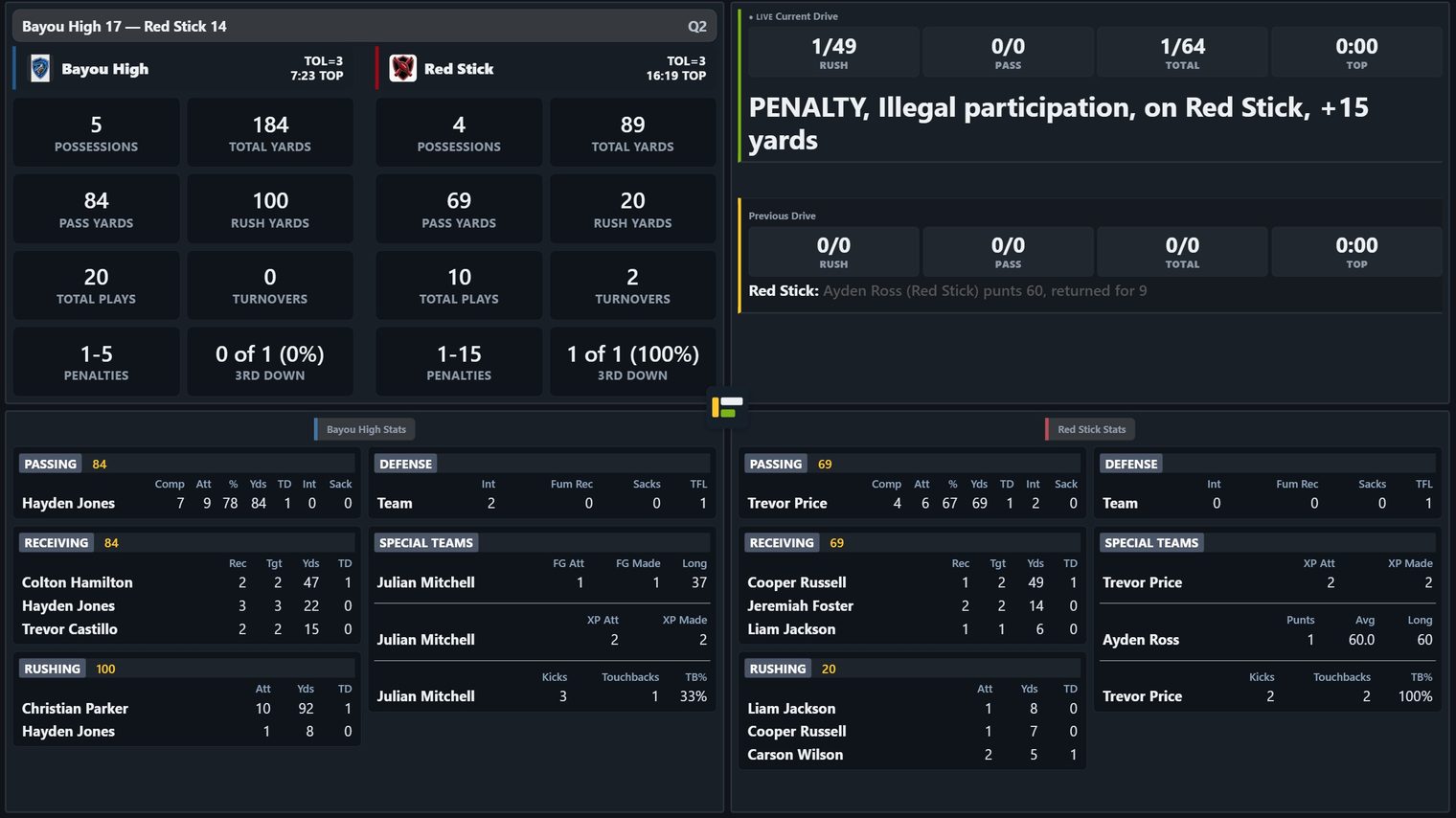
Crew view is a live read-only page. Anyone with the link can watch the score, the current drive and the leaders update as you enter plays, on any device. It is built for a phone.
Broadcast setup holds every overlay and data feed — XML for a scoreboard, HTML pages for vMix browser inputs. Hand those links to whoever runs the switcher and they can build their graphics before game day.
Both are reached from the ⋮ menu on the game's row on your dashboard, along with Set as ON AIR — the switch that tells every one of those feeds which game they are reading. It sits second in that menu, straight under Game setup, in the same blue as Crew View and Score summary, because the three of them are the broadcast block: ON AIR is what makes the other two live.
Give the crew a lineup the day before
On the game setup screen, under the likely starters, is a collapsed section marked BROADCAST ONLY. Fill in your offense, defense and special teams there and three starting-lineup overlays have something to show — a proper lineup card, in one column or two, without your crew building one.
It takes a few minutes and it is entirely optional. Two things worth knowing before you decide:
- It affects nothing else. Not play entry, not the pickers, not a single statistic. It is read only by the broadcast graphics.
- Partial is fine. Fill in four names or all twenty-six. A unit with no lineup draws nothing at all rather than an empty card, so there is no penalty for stopping halfway.
Do it Monday or Tuesday with the rest of the game setup, not Friday afternoon. The lineup can still be edited right up to kickoff — and after it, on a game already being scored — because officials change a lineup late and so do coaches.
Try an overlay before game day
The overlays are ordinary web pages with transparent backgrounds. Your switcher points a browser input at one and it keys straight over the programme feed — nothing to install, no data mapping. The quickest way to understand what your crew is getting is to look at one yourself, and a sample game is a good thing to look at it with. Either will do, but the finished one (SAMPLE FINAL) has a whole game in it, so every tile on every overlay has something to show.
- On the dashboard, open the ⋮ menu on the game's row and choose Set as ON AIR. Do this first — every overlay reads whichever game is on air, and with nothing on air they all come up empty. It is the most common reason a graphic looks broken.
- From the same menu, open Broadcast setup.
- Copy the address for Team stats + leaders (portrait) — the tall narrow one, built for a lower-third or a side slot, with the leaders stacked and your team on top.
- Paste it into a browser tab and add
&debug=1to the end. - Enter a play in the game and watch the panel change.
&debug=1. The overlay's
background is transparent so it keys straight over video — but that means
in a plain browser tab you cannot see where the panel actually ends. The content
reads fine; the edges do not. That switch drops a solid background behind it so
you can see its real shape and judge how it will sit over your programme feed.
Leave it OFF in the address you hand your switcher, or you will key a
near-black rectangle to air where the transparency should be.Ready for the detail? The full guide covers everything this page skips.